Campaigns let you send targeted email or SMS promotions directly to your patrons. Here's how to create, customise, and send a new campaign.
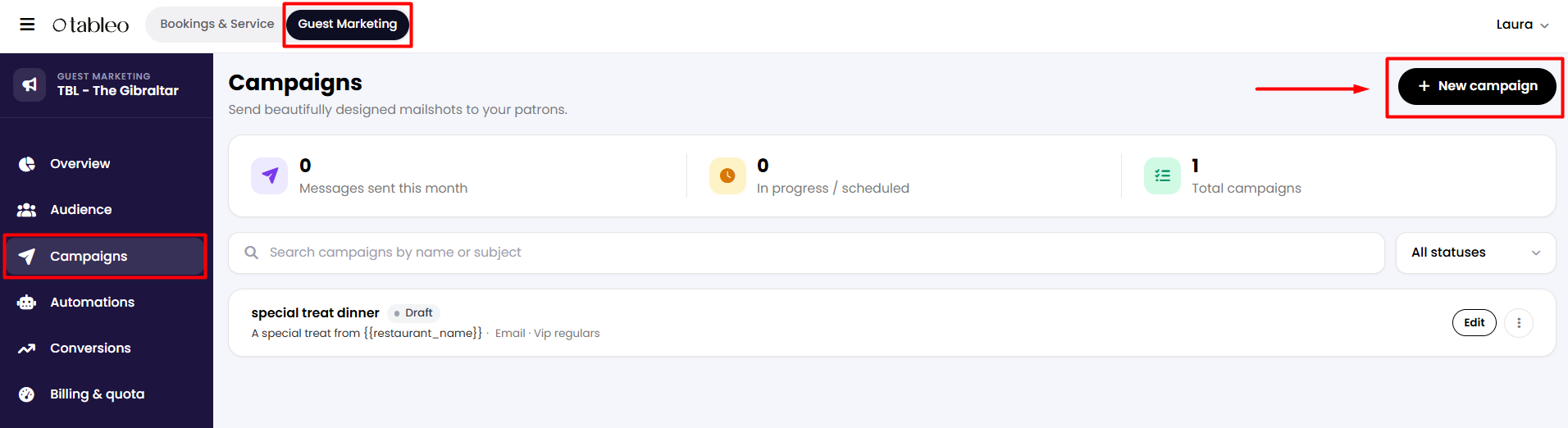
1. From the top of the screen, click on the Guest Marketing button. Then, on the side menu, go to Campaigns.
2. In the top right corner of the screen, click on the + New Campaign button.
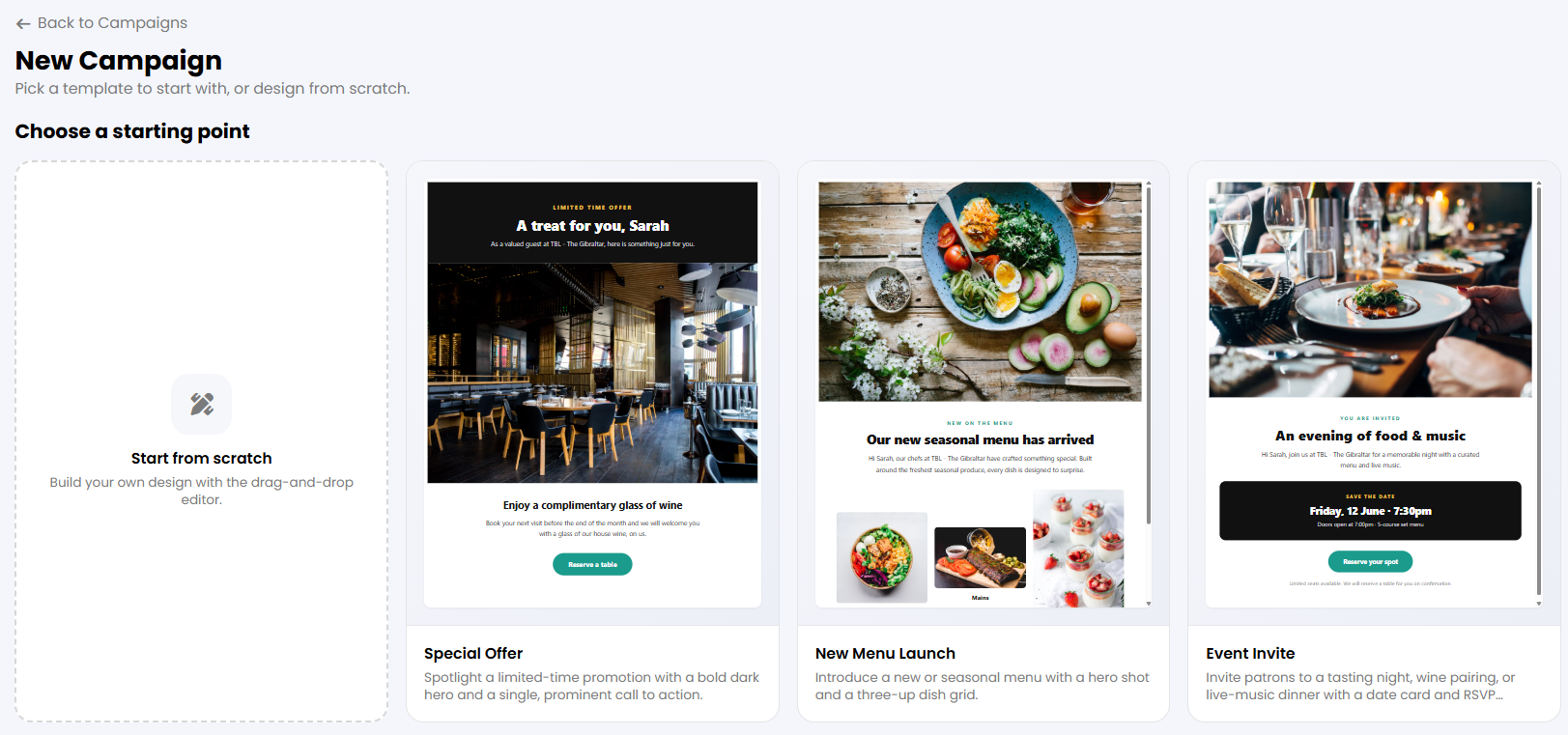
3. A new tab will appear for you to choose a starting point between different templates or create your own design from scratch. Then click on the selected option.
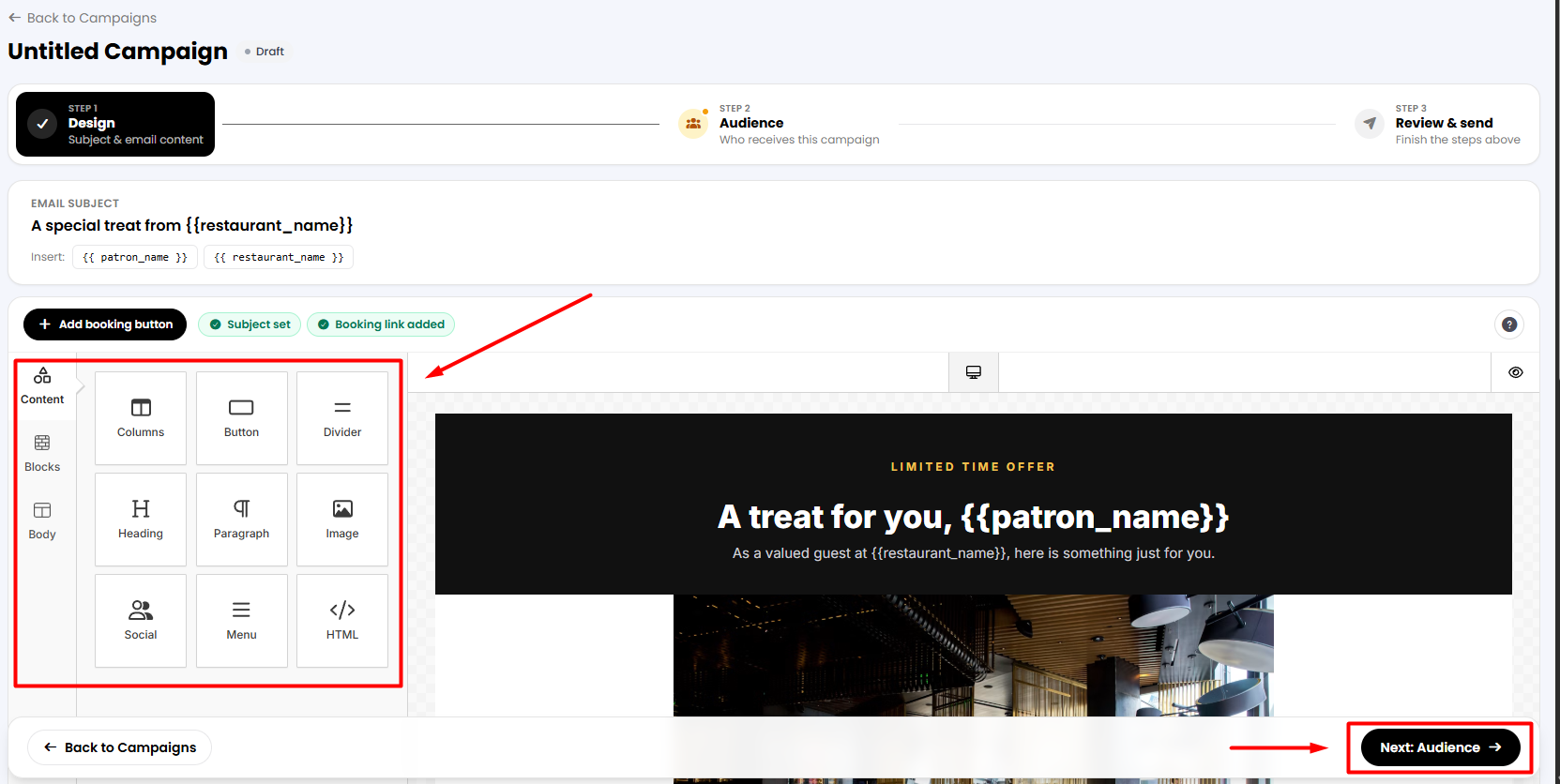
4. Here, you can edit your campaign's name at the top left of the screen simply by selecting it with your mouse pointer and writing over it.

You will also be able to customise or make adjustments to the previous template/blank design with our editor's tool on the left. Once finished, click on the Next: Audience button below.
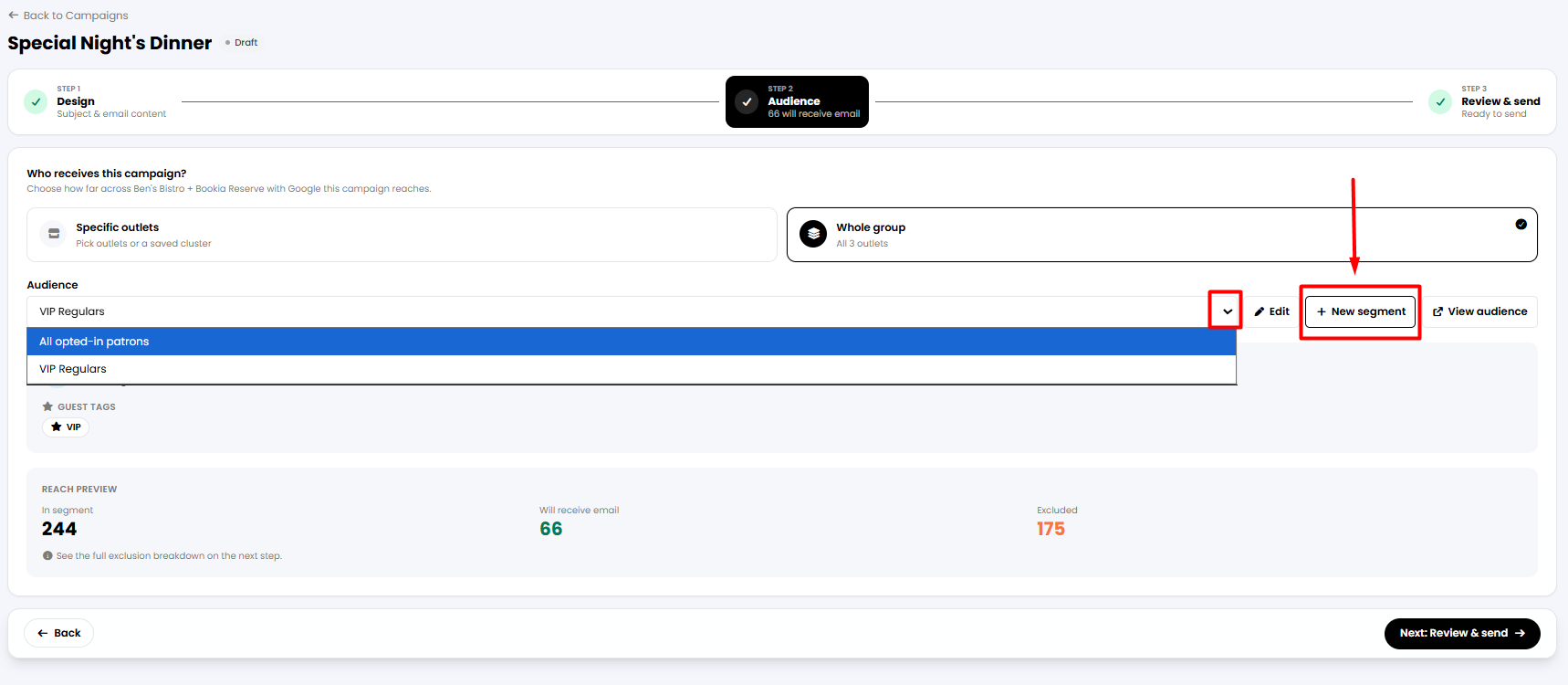
5. A new tab will appear where you can select which restaurant(s) the campaign will be forwarded to. If you have more than one restaurant, you can choose to forward it to all of your outlets or only to the specific ones you select.

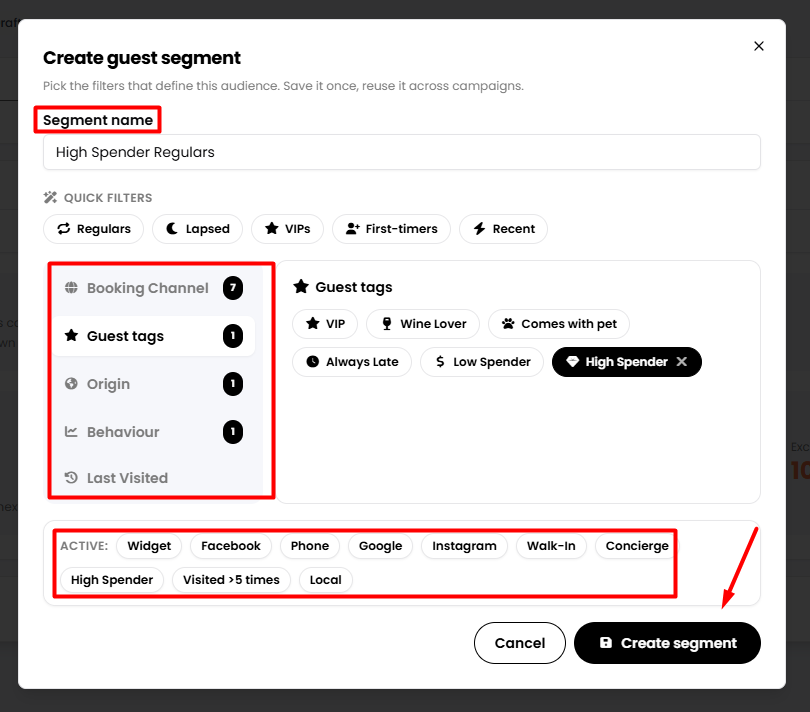
6. Below, you can select the audience you want to reach. Click the down arrow on the right to search your existing segments, or click the + New Segment button next to it to create and save a new audience.
7. A new tab will open for you to customise a new client's segment based on different filters such as their visiting date, booking channel, guest type, and other tags. Just click between the filter types on the left to change from one to the other below. Once done, click on the Create segment button below.
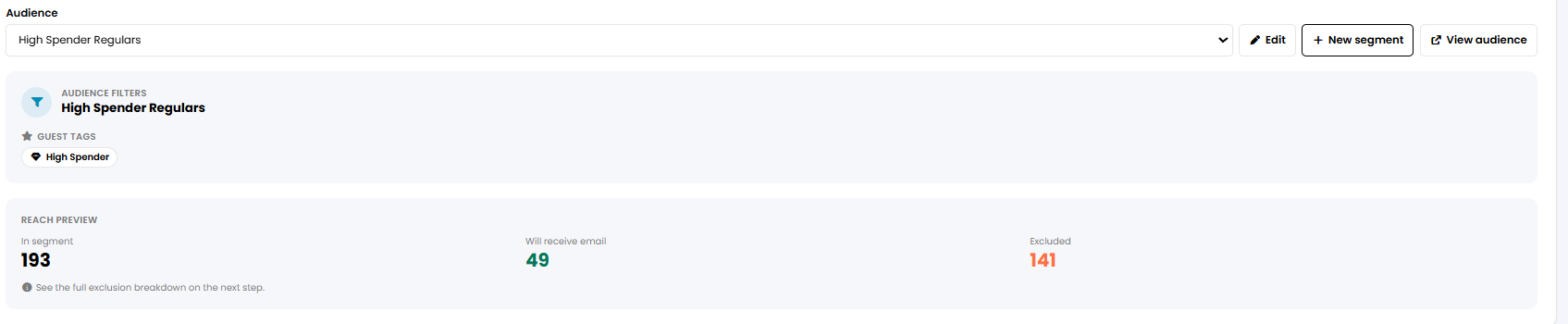
The newly selected segment will appear on screen. To continue, click on the Next: Review & send button below.
8. Once you're finished, a new tab will appear where you can see an email preview on the left and different options on the right. Pick the one you consider right for you.
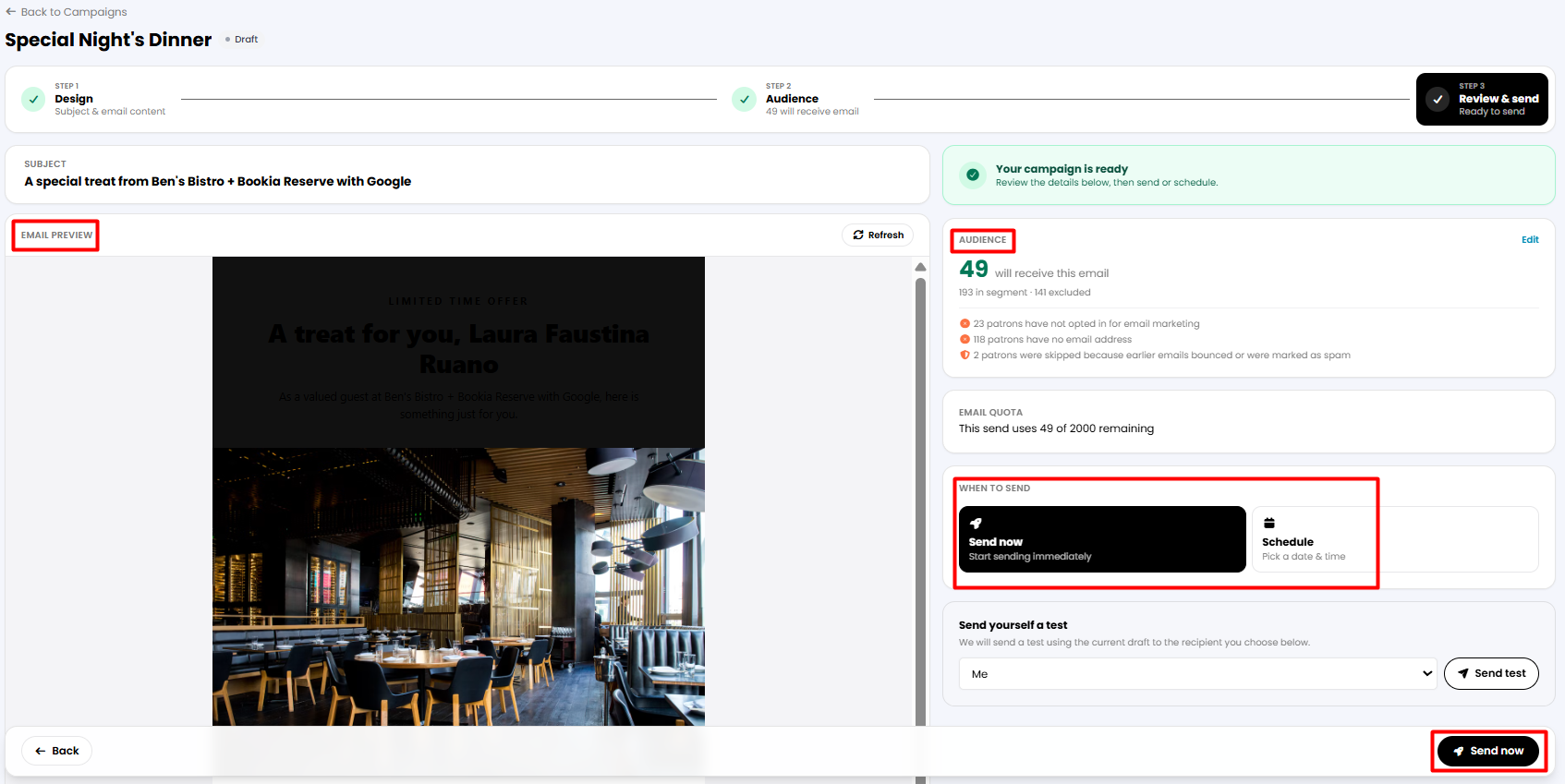
• Send now: It will activate the campaign instantaneously. Then click on the Send now button below.
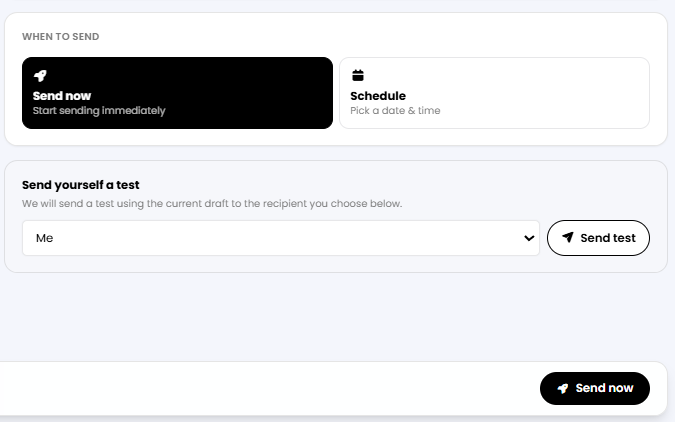
• Schedule: If you would like to set a date for this campaign to be launched.
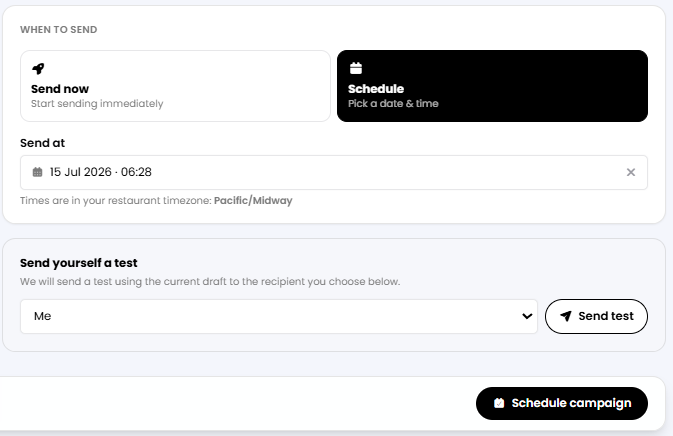
• Send a test: choose among your restaurant's managers and send an email to test your campaign. Then choose to Send now or to Schedule.
9. Now, on the Campaigns main page, you will see it listed. You can view and edit your campaign details by clicking the View option on the right. To duplicate or delete it, click on the three dots on the right.

While we strive to ensure the accuracy and currency of the information in our knowledgebase, some articles may contain minor discrepancies due to the constant evolution of our services and products.
Was this article helpful?
That’s Great!
Thank you for your feedback
Sorry! We couldn't be helpful
Thank you for your feedback
Feedback sent
We appreciate your effort and will try to fix the article